Web UI tour
Use the web UI to see the whole plan at once and steer it: what is ready, what is blocked, what agents hold and what needs you. It works on the same tickets as the CLI and MCP, so a change made anywhere shows up here within seconds.
The screenshots show a demo workspace called lumen (prefix LUM).
1. Open it
staple open
staple ui — workspace "app" at http://localhost:4400/
  (browser on this machine needs no token; API callers use ~/.staple/ui-token or ?token=25nHEhaY…)
Your browser opens on this repository's workspace. The server listens on this machine only and stops on Ctrl-C.
staple open --port 4410picks the port. Without--port, staple takes 4400, or a free port when 4400 is busy.staple open --hubshows every workspace on this machine at once. See Several repositories.staple open --no-browserstarts the server without opening a tab.
2. Find your way around
On a wide screen the rail on the left lists the views: Tasks, Queue, Graph, Milestones and Estimates, then Usage under This computer, and Settings with the dark-mode switch at the foot. The top bar names where you are, shows the sync state if the workspace uses cloud sync, and holds the search field and New task.
| Keys | Does |
|---|---|
⌘K / Ctrl-K | the command palette: jump to a view, a task or a setting |
c | New task |
[ | hide or show the rail |
j / k | next or previous task while one is open |
| Escape | close what is open |
Below 768 px the UI becomes a phone app with a tab bar for the views. The address always describes the page, filters included, so you can bookmark or share a view.
3. Tasks: the whole tree
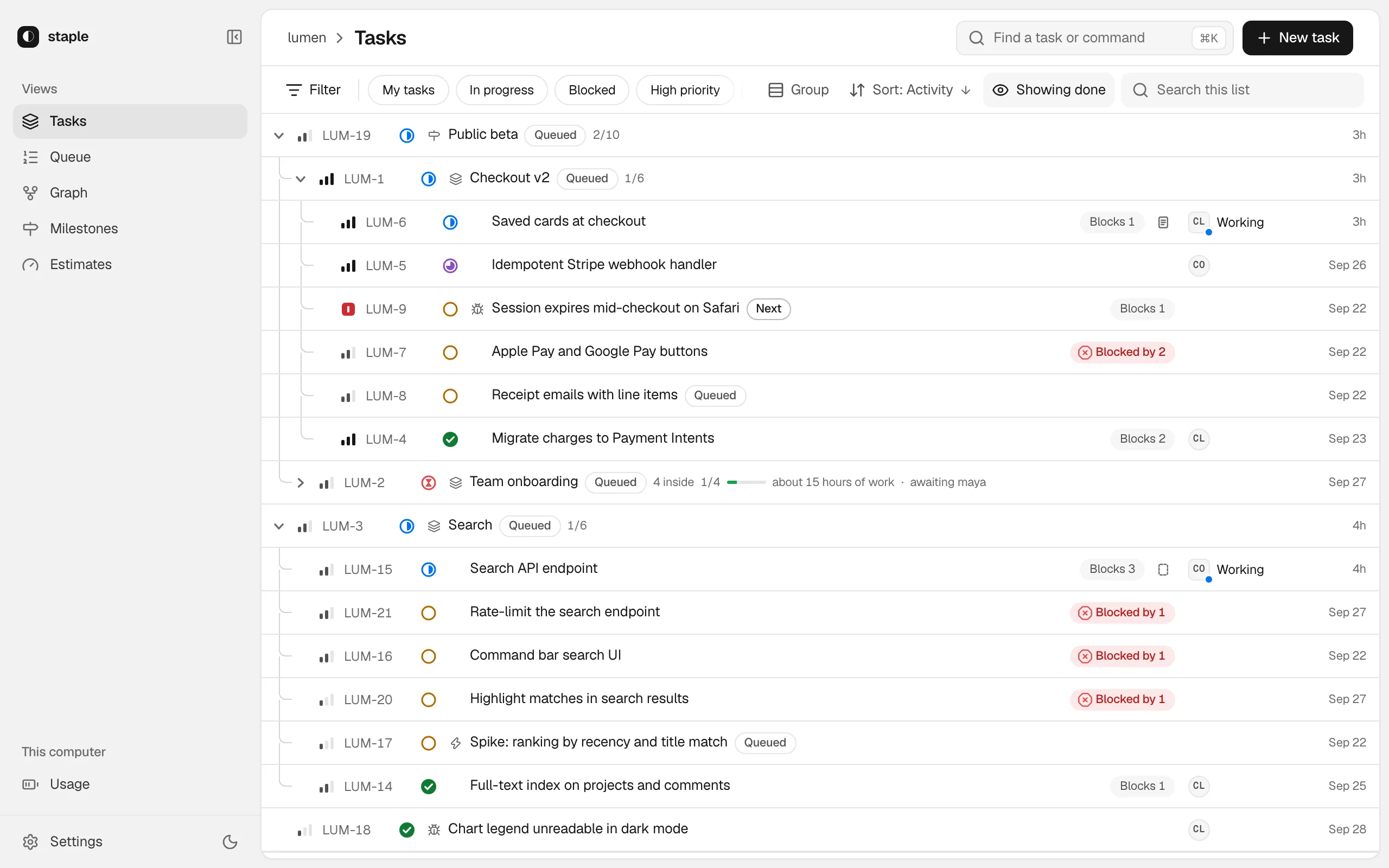
Every ticket, parents over children. Each row shows its status, what it waits on (Blocked by 2), what waits on it, and who holds it (Working). A folded epic shows its progress.
The quick filters (My tasks, In progress, Blocked, High priority), Filter, Group, Sort and search shape the list. Change a status from its icon, and click a ticket to open it (step 7).
4. Queue: what agents take next
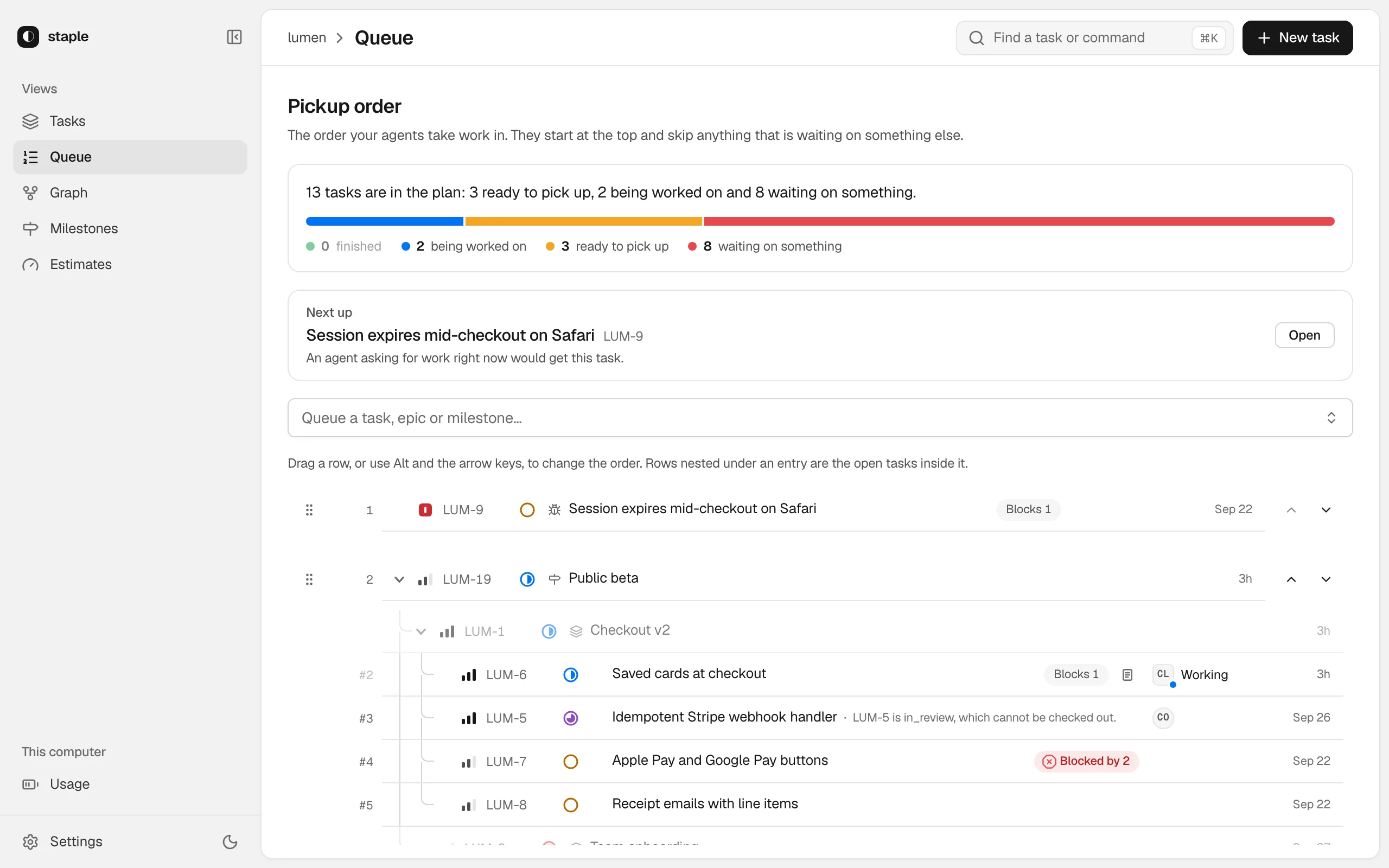
The pickup queue as one list. Next up names the ticket an agent
asking now would get; below it, your plan in order, each queued epic or milestone
expanded into its tickets. Drag rows (or Alt-↑ and Alt-↓) to reorder; Queue a
task, epic or milestone… adds work, and a row's ⋯ menu removes it.
5. Graph: how work depends on work
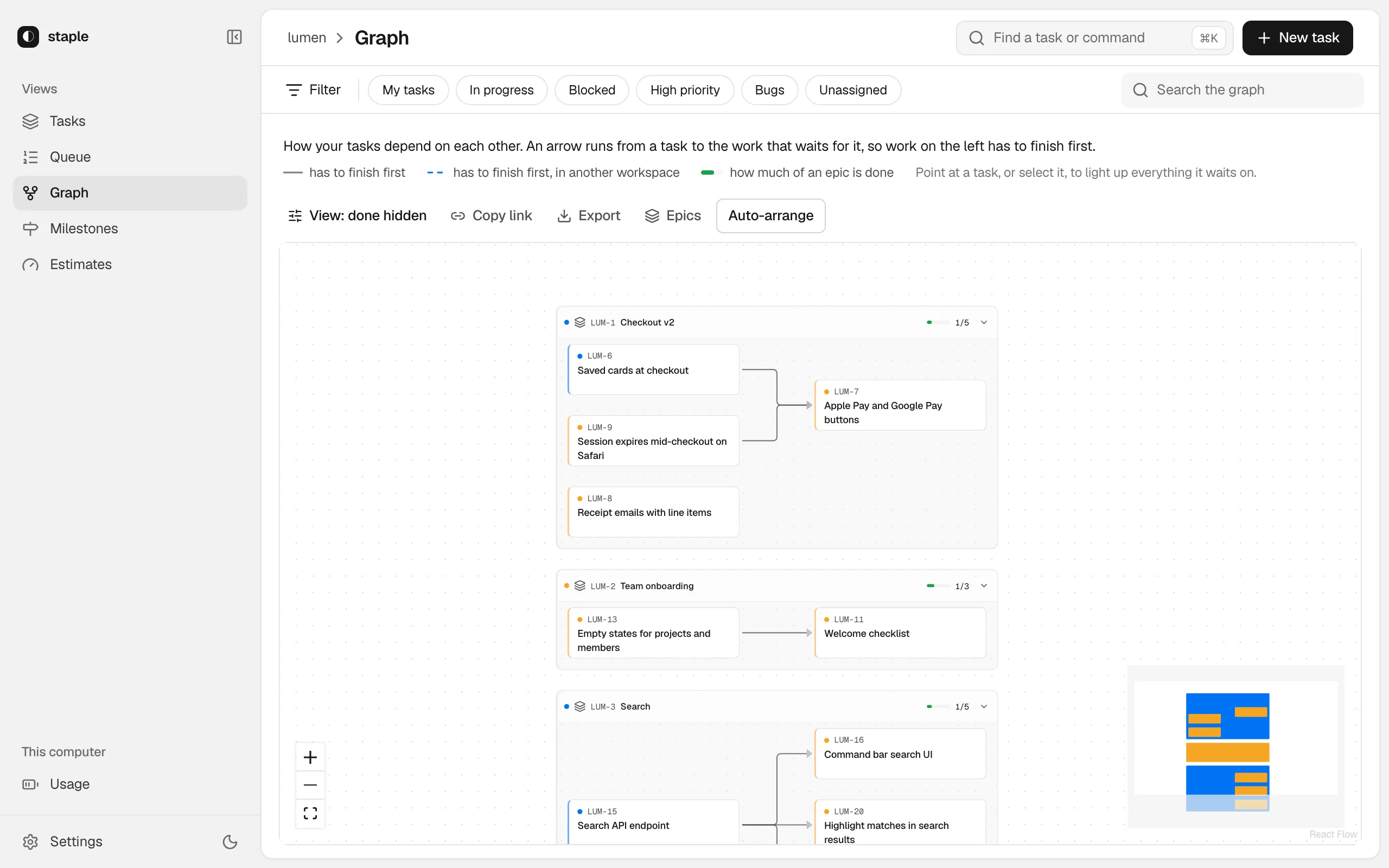
Tickets that take part in a dependency, inside boxes for their epics, with an arrow from each ticket to the work that waits on it. Hover a ticket to light up the chain it waits on, and use the Epics picker to narrow the canvas.
6. Milestones: dated plans
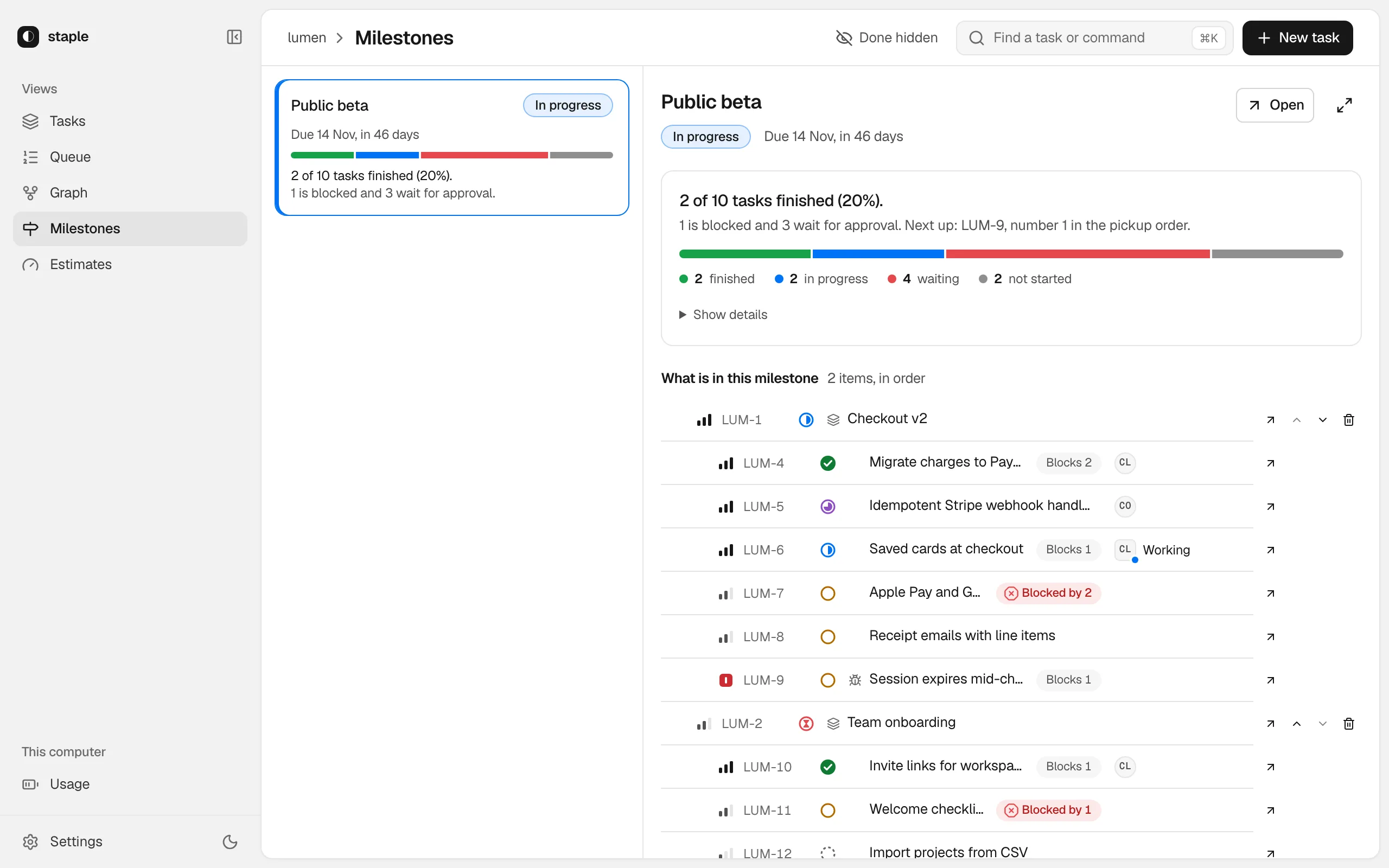
Each milestone in plan order, with its due date, progress and what is in the way (1 is blocked and 3 wait for approval.). Select one to see what is in it and what comes next; reorder or remove members from their rows. Open shows its goal: each criterion with its verdict, and whether the milestone is on pace for its date.
7. Open a task
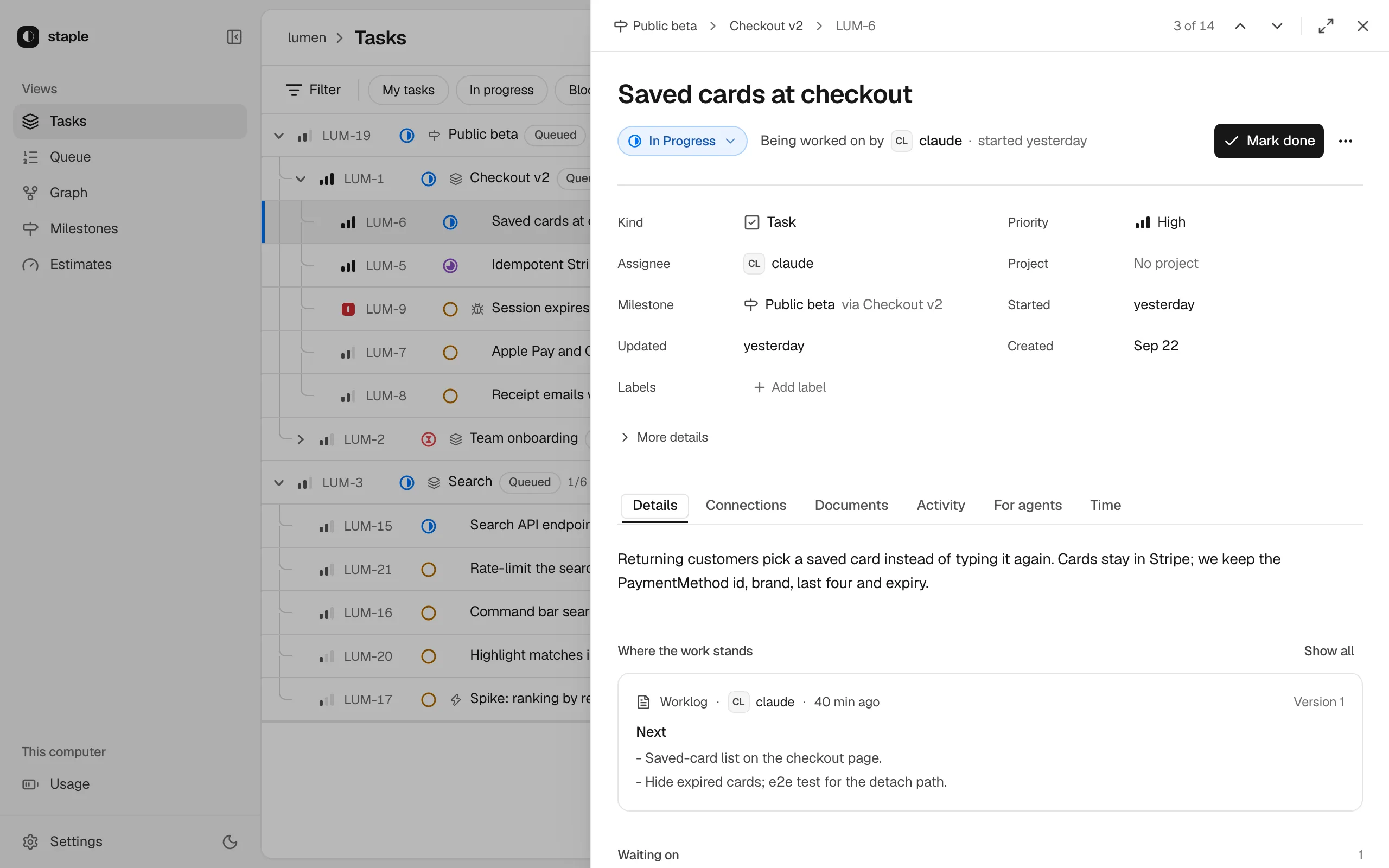
A task opens in a drawer on the right. The top holds its status, a sentence about where it stands, and one primary action: Start work, Mark done, Reopen, or Take it over when the holder has gone quiet for 30 minutes. The tabs:
| Tab | What it is for |
|---|---|
| Details | The description, the done-when criteria, the latest worklog, and what it waits on and holds up |
| Connections | Its epic, sub-tasks and dependencies, with a map |
| Documents | The plan, worklog and other documents agents stored, with every revision and a compare |
| Activity | Comments and events by day; add a comment here |
| For agents | Exactly what an agent sees when it opens this ticket, and its size in tokens |
| Time | Estimate against actual work, and the forecast (Budget and estimates) |
When a ticket waits on your approval, a Review gate block sits above the tabs: approve all, approve some children, or send it back with a note (Approval gates).
8. Watch autopilot runs
Once the workspace has had an autopilot run, the rail gains an Autopilot section: a card per live run with its progress, next ticket and Stop, and Run history with how each run ended. Agents start runs; the web UI watches, pauses and stops them.
9. Estimates and Usage
Estimates shows how long work really takes against its estimate, per kind of work. Usage shows this computer's provider limits and whether your pace keeps a reserve. Both are covered in Budget and estimates.
10. Settings
Open Settings from the foot of the rail, or ⌘K then Settings.
- Across all workspaces: Cloud account and Workspaces on this computer (cloud sync and the hub), Usage (provider budget capture) and This computer (the default port and whether a browser opens).
- Per workspace: Statuses and Task types (rename, add, reorder; turn on milestones here), Picking up work (the queue's advisory or strict policy) and Cloud sync for that workspace.
Next
- Budget and estimates: the Estimates and Usage views.
- Several repositories: one page over every workspace.
- Configuration: every setting the Settings sheet edits.
Going deeper: the web UI in detail covers every control, cue and route.